

QR codes have gone from a novelty to a genuine marketing tool. You'll see them on business cards, event flyers, product packaging, and social media posts, and for good reason: they turn a printed or visual asset into an instant gateway to wherever you want to send people. No typing a URL, no searching. One scan and they're there.
They're also more useful in digital content than most people realize. A LinkedIn carousel, for example, is often viewed on a desktop where clicking through to an external link isn't always smooth. Drop a QR code on the final slide and someone can scan it on their phone to grab your address, book a call, or access a free resource without any friction. It bridges the gap between where people are seeing your content and where you actually want them to go (something to keep in mind when you're creating in Carousel Studio).
The good news is that you don't need a separate QR code generator to make one. Canva has a built-in QR code tool that lets you create, customize, and drop a QR code directly into your design without leaving the platform. Whether you're on the free plan or Canva Pro, you can have one ready in under two minutes.
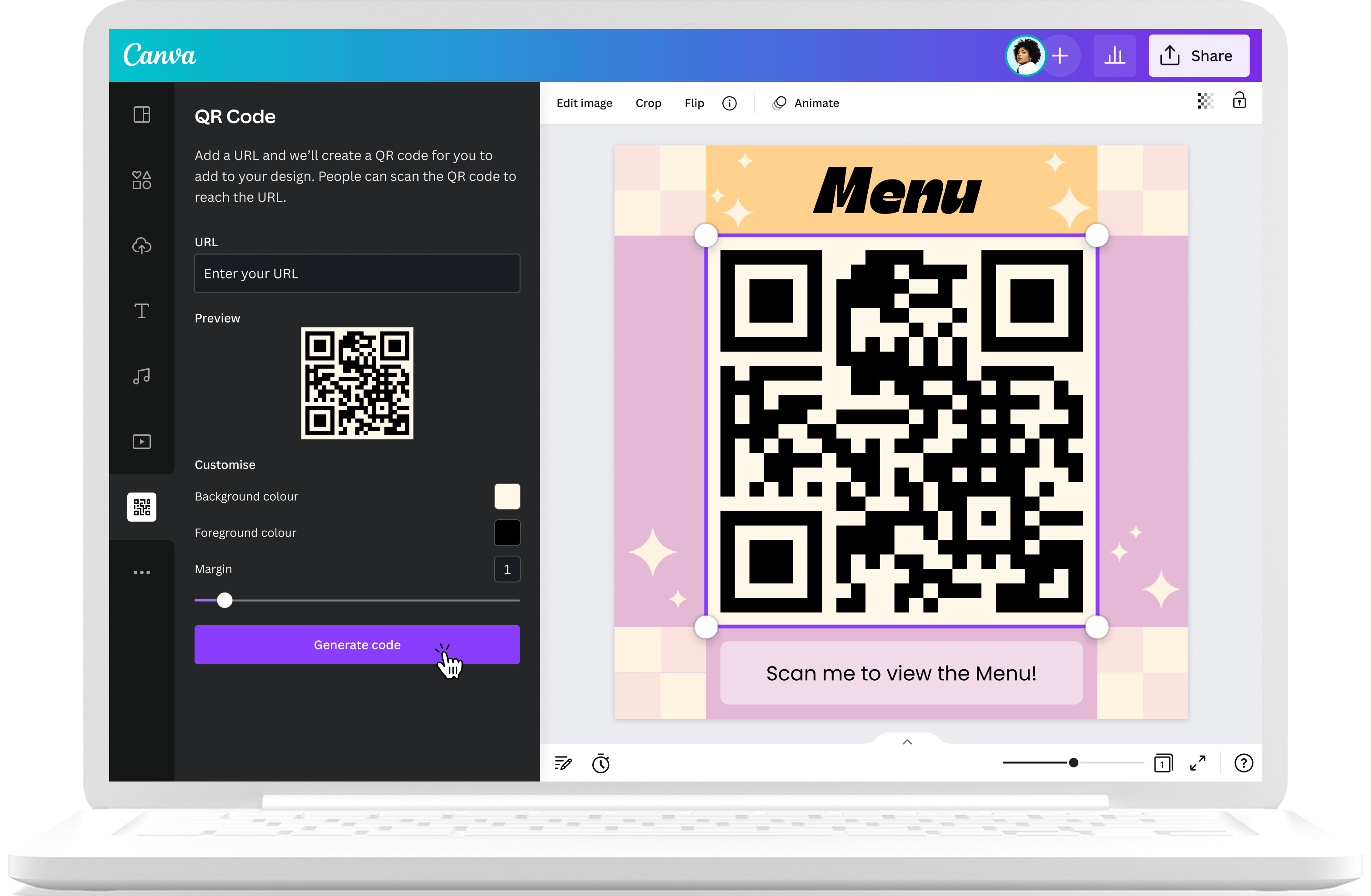
This guide covers how to create a QR code in Canva step by step, plus how to make one for a document, how dynamic QR codes work, and how to link a QR code to a carousel.
How to Create a QR Code in Canva: Step by Step
Step 1: Open your design in Canva
Start with whatever design you're adding the QR code to. That might be a flyer, a business card, a presentation slide, a social media graphic, or anything else. Open it in Canva's editor. If you're starting fresh, create a new design in the size that suits your format.
Step 2: Open the Apps tab and search for QR Code
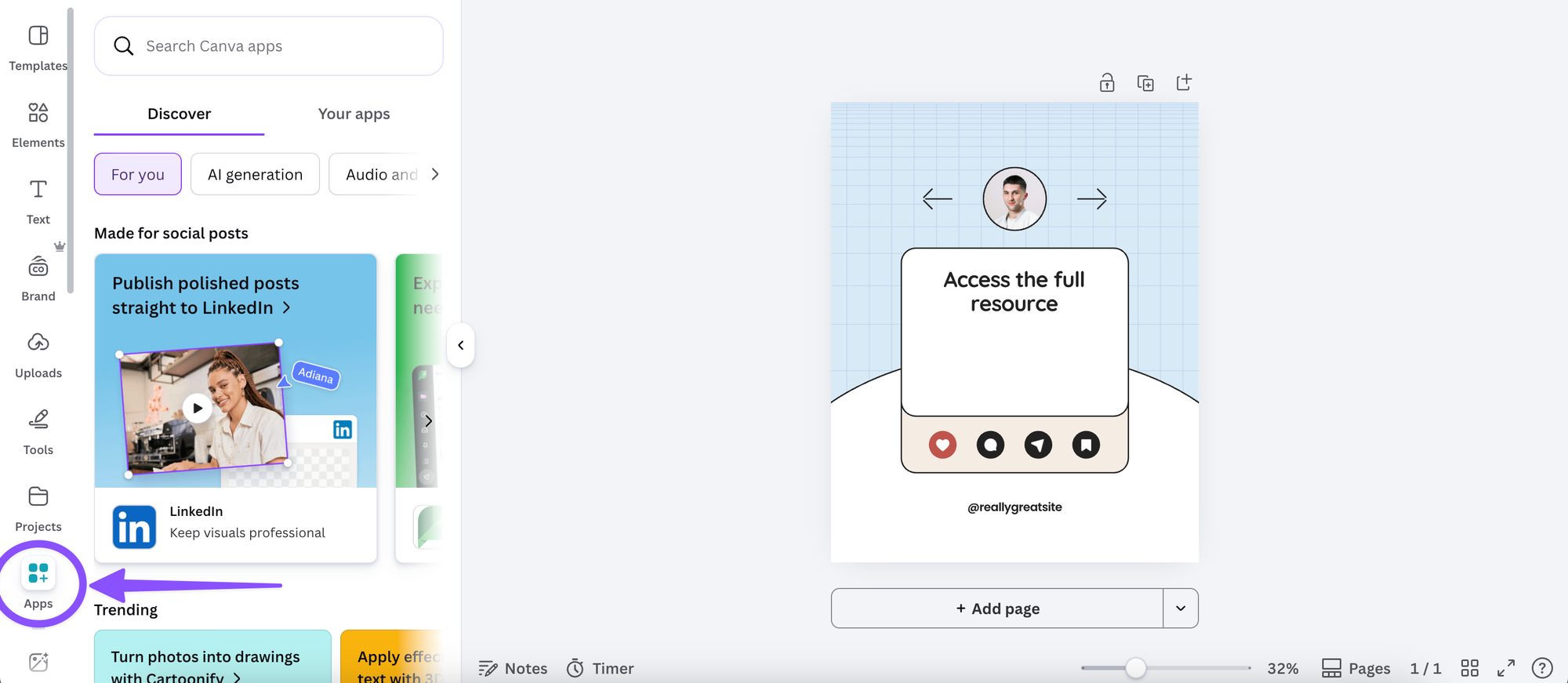
In the left sidebar of the Canva editor, click on Apps. In the search bar, type "QR Code." You'll see Canva's native QR code tool appear at the top of the results. Click on it to open it.
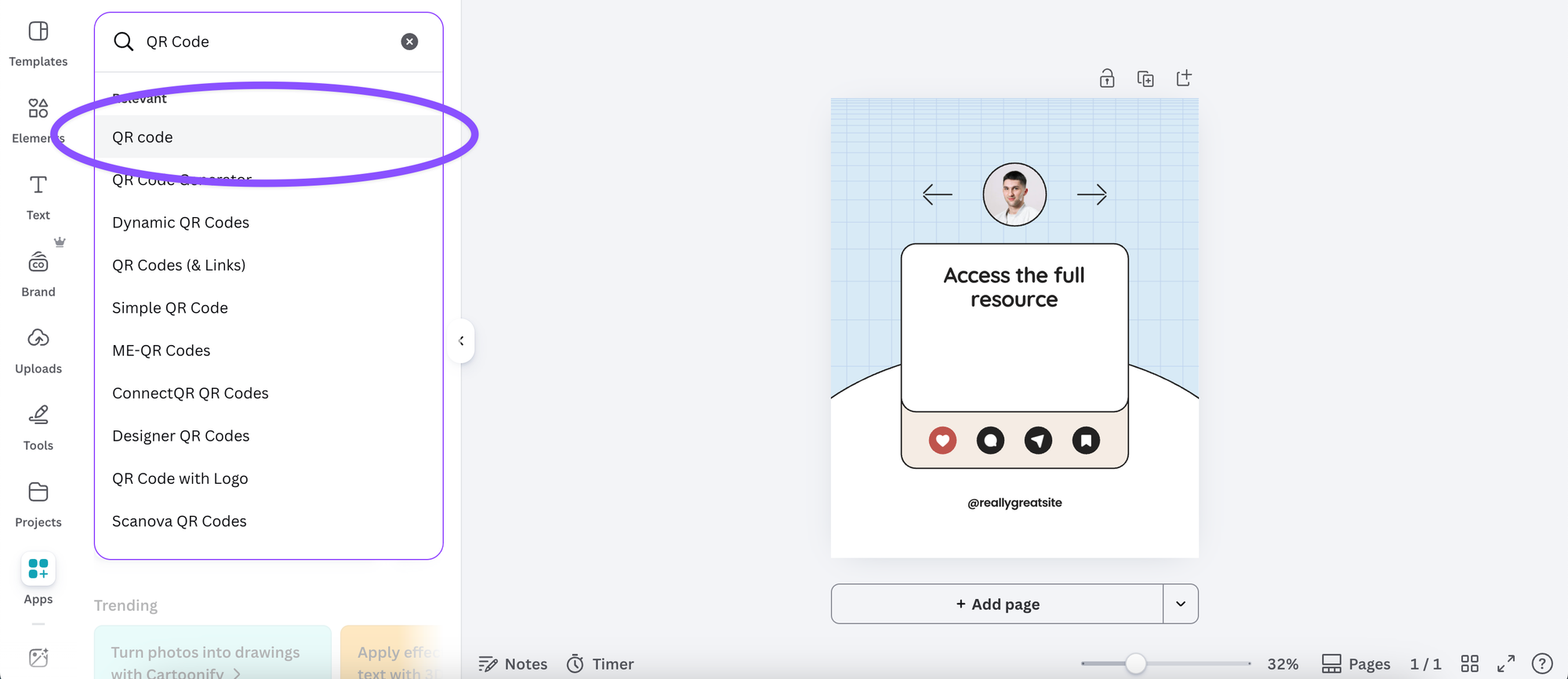
If you've used it before, it may already appear in your recently used apps, so you won't need to search each time.
Step 3: Enter your URL
Once the QR code tool is open, you'll see a field where you can enter the URL you want the code to link to. This can be any web address: your website homepage, a specific landing page, a product page, a booking link, a PDF, or a document.
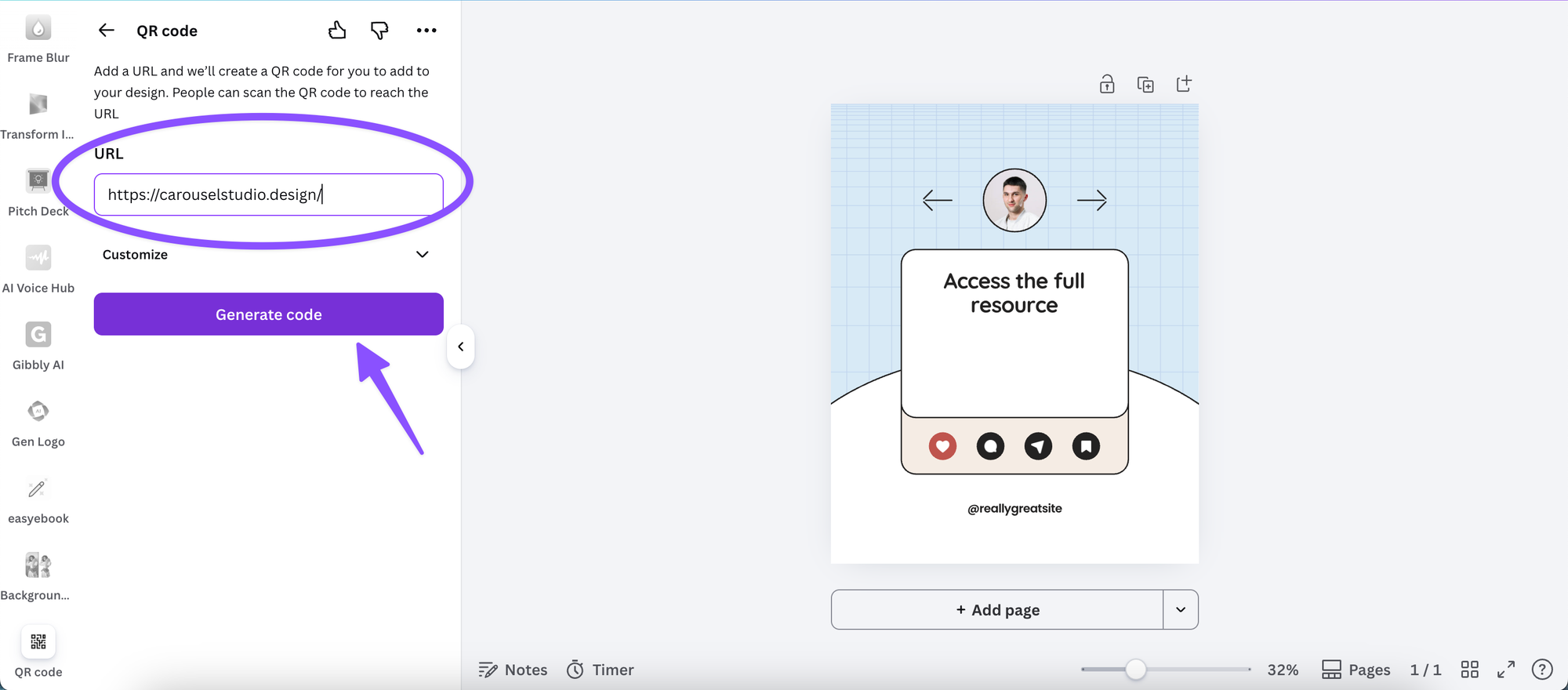
Type or paste your URL into the field and click Generate code.
Step 4: Add the QR code to your design
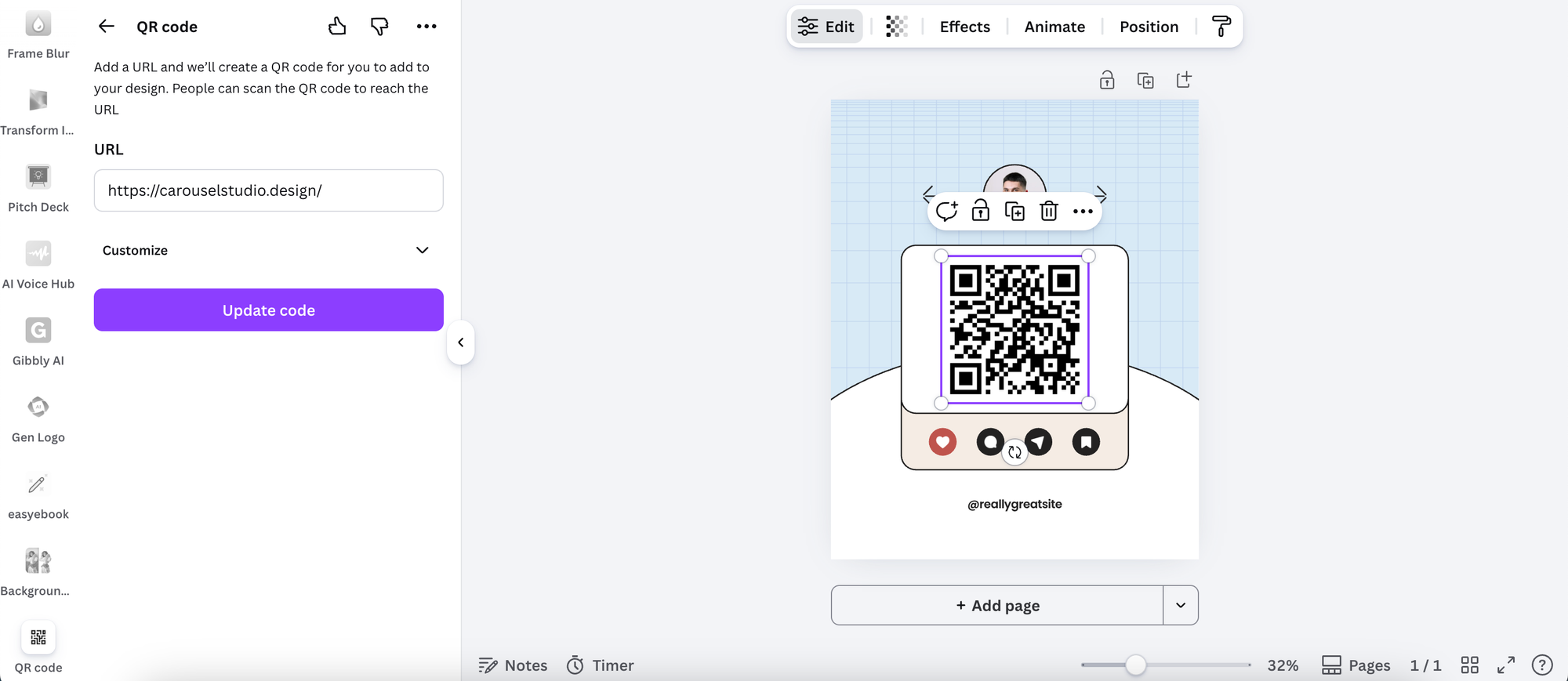
Canva will generate a QR code and add it directly to your canvas. From there, you can click and drag it to position it wherever you want it to sit within the design. Use the corner handles to resize it. The code should be large enough to scan comfortably; as a general rule, aim for at least 2.5cm x 2.5cm on any printed material.
Step 5: Customize your QR code (optional)
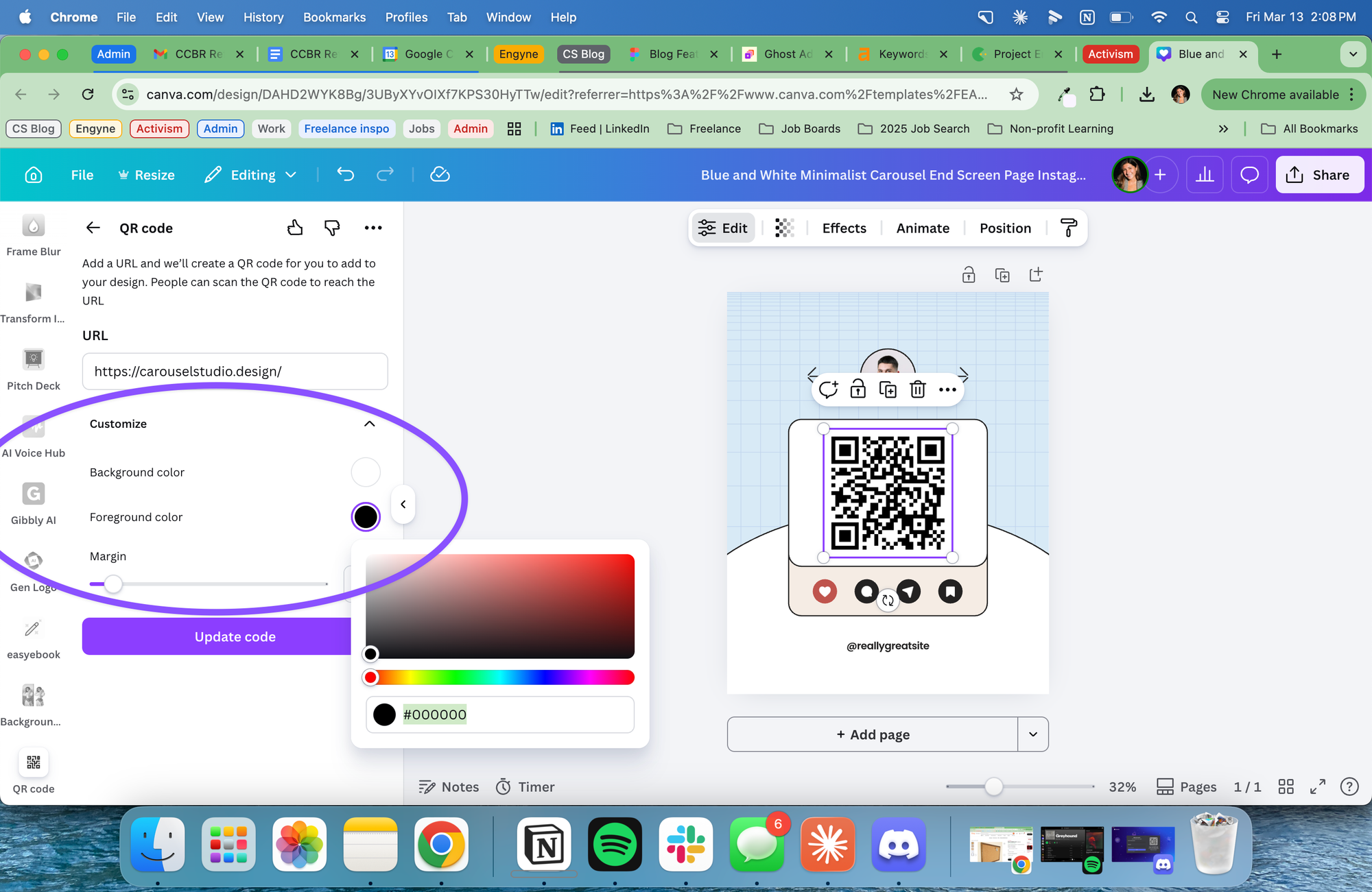
Canva gives you some basic customization options for your QR code, including the ability to change the foreground and background colours to match your brand. Click on the QR code in your design to access the colour options in the toolbar above.
Keep in mind that contrast matters here. A QR code needs enough visual distinction between its dark and light areas to scan reliably. Dark code on a light background is the safest combination. Avoid low-contrast colour choices or adding heavy overlays, as these can make the code unscannable.
Once you're happy with the placement and styling, your QR code is ready to go.
How to Create a Free QR Code in Canva
Canva's built-in QR code tool is free to use on all plans, including the basic free one. You don't need Canva Pro to generate a QR code and add it to your design. The steps above work regardless of which plan you're on.
What Canva Pro does add is access to premium design assets and features for styling your overall design, but the QR code generation itself is not a Pro-only feature.
If you're looking for a free QR code generator that integrates directly into your design workflow rather than requiring you to download an image from a separate site and re-upload it, Canva is one of the most practical options available.
How to Create a Dynamic QR Code in Canva
A standard (static) QR code is fixed. Once it's generated, the link it points to cannot be changed. If you need to update the destination URL after the code has been printed or published, you'd need to generate a new code entirely.
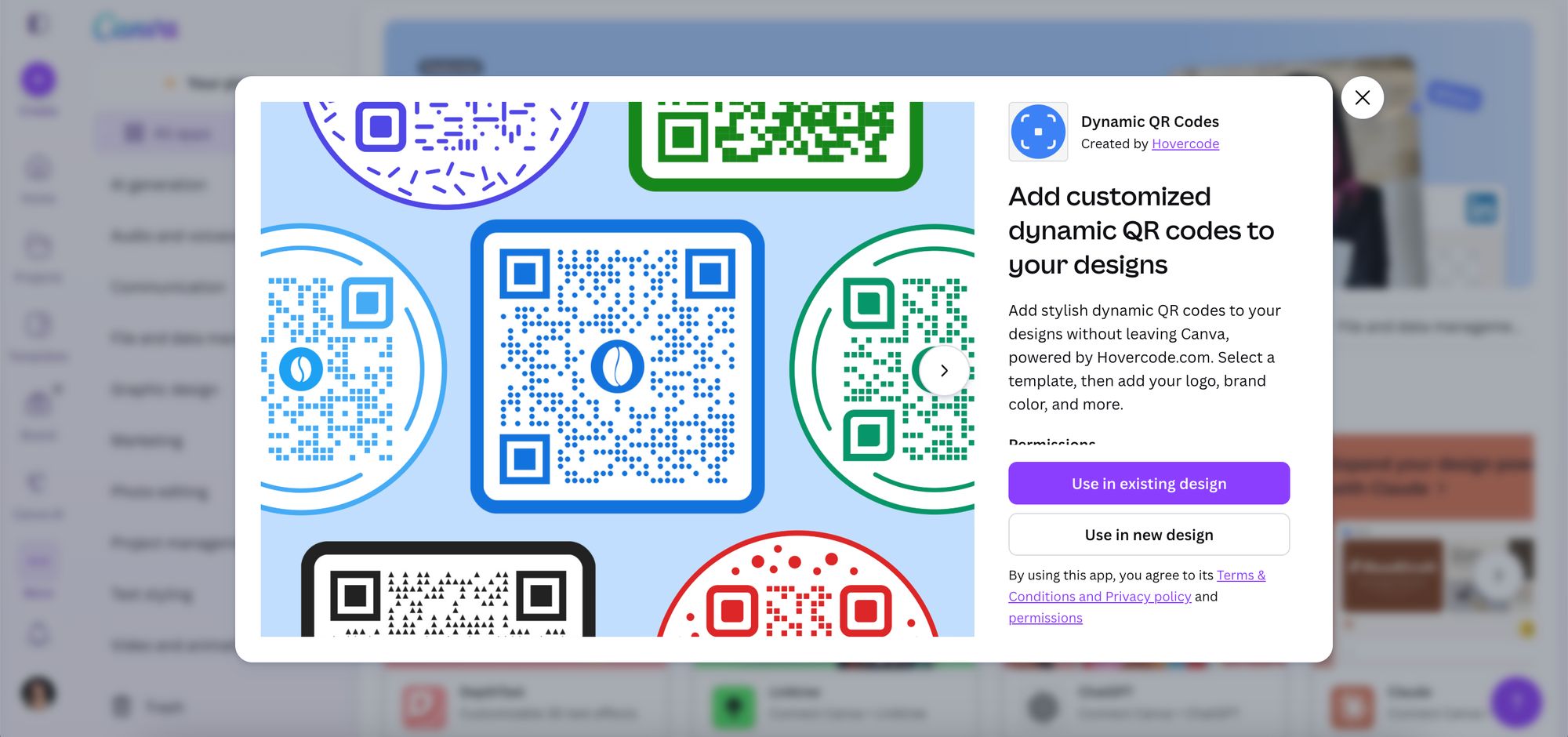
A dynamic QR code solves this by pointing to a redirect URL that you can update at any time, without changing the QR code itself. This is particularly useful for print materials, packaging, or anything that's going to be in circulation for a while. Dynamic QR codes can also allow for further style customization to better match your brand, depending on the app you use to create it.
Canva's native QR code tool generates static codes. For dynamic QR codes, the Canva App Marketplace has third-party QR code apps that offer dynamic functionality, often with additional tracking features so you can see how many times the code has been scanned. Search "QR code" in the Apps tab to see what's available and compare the options.
How to Create a QR Code for a Document in Canva
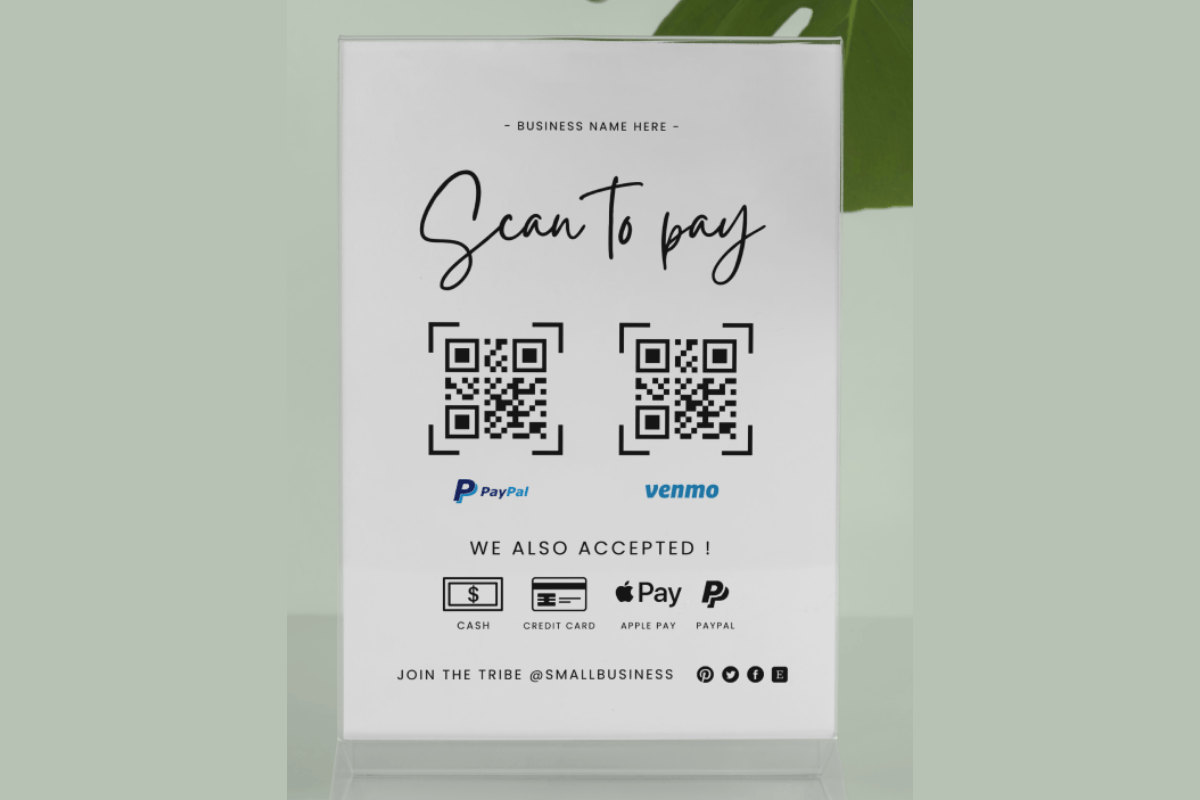
Creating a QR code for a document is a two-step process: first you get the shareable link for the document, then you use that link to generate your QR code.
If the document is in Canva: Open the document in Canva, click Share in the top right corner, and choose the option to share as a link. Copy the link that's generated.
If the document is a PDF or file hosted elsewhere: Upload it to a file hosting service (Google Drive, Dropbox, or similar), get the shareable link, and make sure the sharing permissions are set so that anyone with the link can view it.
Once you have your link, follow the standard QR code steps above: open the QR code tool in Canva, paste in the document URL, generate, and add it to your design.
This approach works well for lead magnets, resource guides, menus, event programmes, and any other document you want people to access by scanning rather than typing a URL.
How to Create a QR Code for a Carousel in Canva
Carousels aren't typically published as standalone web pages, so linking to one via QR code requires a slightly different approach depending on where the carousel is being shared.
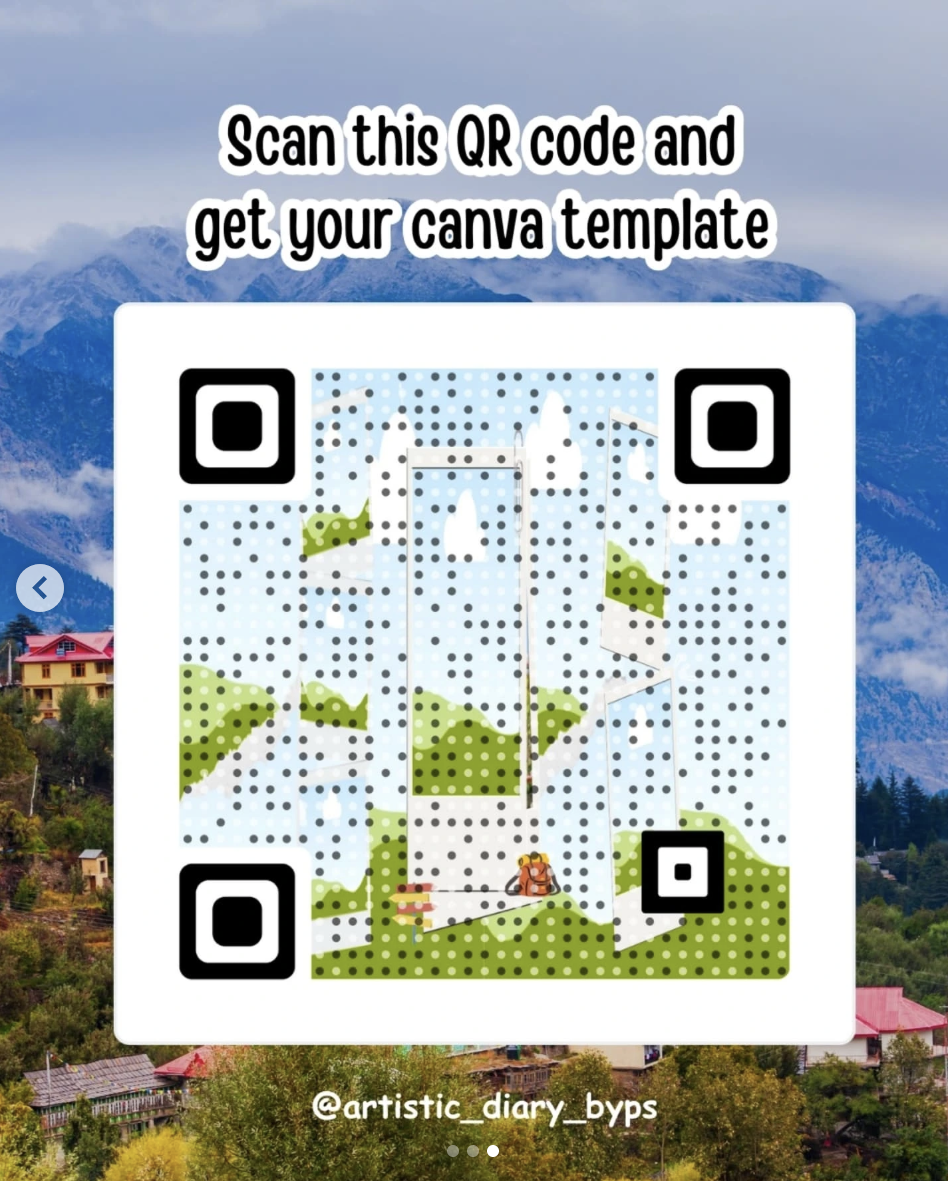
Linking to a social media post: If you've published a carousel on Instagram or LinkedIn, you can copy the post URL directly from the platform and use that as your QR code destination. Someone scanning the code on a print or offline asset will be taken straight to the post.
Linking to a Canva presentation: If your carousel is built as a Canva presentation and you want to share it as a standalone viewing experience, you can publish it as a view-only link. Go to Share, select Publish to web or copy the view link, and use that URL for your QR code.
Using Carousel Studio: If you're creating carousel content for Instagram or LinkedIn with Carousel Studio inside Canva, you can export the finished carousel, post it, and then link to the live post via QR code. It's a great way to bridge offline and online content: a business card, a poster, or a printed piece of collateral can send people straight to your best-performing carousel content with a single scan. You can find Carousel Studio in the Canva App Marketplace or install it here.
Tips for Getting the Most Out of Your Canva QR Code
Always test before you publish. Use your phone's camera or a dedicated QR code scanner app to scan the code before the design goes to print or gets published. A QR code that doesn't scan is worse than no QR code at all.
Size matters. Small QR codes are harder to scan, especially in print. If it's going on a business card, it needs to be big enough to pick up at arm's length. If it's on a banner or poster, larger is always better.
Give people a reason to scan. A QR code on its own doesn't tell anyone what they'll get. Add a short line of context next to it: "Scan to book a free call," "Scan to download the guide," or "Scan to see the full menu." The more specific the call to action, the more scans you'll get.
Keep the contrast high. Dark code on a white or light background is the most reliable combination for scanning. Coloured codes can work, but test thoroughly before committing.
Use a short URL where possible. Long URLs generate more complex QR codes with more data points, which can be harder to scan at smaller sizes. A URL shortener (like Bitly) can simplify the code and make it easier to work with at any size.
Frequently Asked Questions
Can I create a QR code in Canva for free?
Yes. Canva's built-in QR code tool is available on the free plan. You don't need a Canva Pro subscription to generate a QR code or add it to your design. The feature is accessible to all Canva users through the Apps tab in the editor.
What is the difference between a static and a dynamic QR code?
A static QR code has a fixed destination: once it's generated, the URL it links to cannot be changed. A dynamic QR code points to a redirect link that can be updated at any time, even after the code has been printed or published. Canva's native tool generates static codes. For dynamic QR codes, third-party apps in the Canva Marketplace offer this functionality.
How do I create a QR code for a document in Canva?
Get a shareable link for your document first, whether it's a Canva file, a PDF on Google Drive, or any other hosted file. Then open the QR code tool in Canva's Apps tab, paste the link into the URL field, generate the code, and add it to your design. Anyone who scans it will be taken directly to the document.
Do I need Canva Pro to create a QR code?
No. QR code generation is available on Canva's free plan. Canva Pro unlocks premium design features and assets across the platform, but the QR code tool itself is not behind the Pro paywall.
How do I make sure my QR code is scannable?
Test it before you publish using your phone camera or a QR code scanner app. Make sure the code is large enough (at least 2.5cm x 2.5cm for print), that there's enough contrast between the code and the background, and that the URL it links to is working and accessible. Avoid placing heavy design elements or filters over the code.
Can I customize the colour of my QR code in Canva?
Yes. Once the QR code is on your canvas, you can change the foreground and background colours to align with your brand. The key rule is to maintain high contrast between the two. A dark code on a light background scans most reliably. Test any colour customization before finalizing the design.
Can I create a QR code for an Instagram carousel?
Not directly from within Canva, but you can link a QR code to any published carousel post. Post your carousel to Instagram or LinkedIn, copy the post URL, and use that as the destination URL when generating your QR code in Canva. It's a useful way to drive offline traffic to your social content.
What is the best free QR code generator?
Canva's built-in QR code tool is one of the most practical options for anyone already working in Canva, because it generates the code and lets you design around it in the same place. For standalone QR code generation with additional features like dynamic codes and scan tracking, dedicated tools like QR Code Generator or Bitly are worth looking at alongside Canva's native option.