

Most people treat text as the functional part of a design. The bit that delivers the message while the visuals do the heavy lifting. But typography, when it's done well, is the visual.
The right font treatment can stop a scroll just as effectively as a striking image. A well-placed shadow, an unexpected warp, a layered effect that makes your heading feel like it belongs on a billboard: these things don't require a degree in graphic design. They require the right tools.
The four apps below are all available through the Canva App Marketplace, and they're all free to use (with one small caveat we'll cover). Each one does something different with text, and together they cover pretty much every direction you'd want to take your typography.
At a Glance
- Typecraft: Warp and distort text into dynamic shapes and effects
- Font Studio: Layer outlines, shadows, 3D projections, and more onto your text
- Text Warp: Create warped text effects using simple drag controls
- TextArt: Use AI to add artistic, illustrative elements directly into your text
1. Typecraft
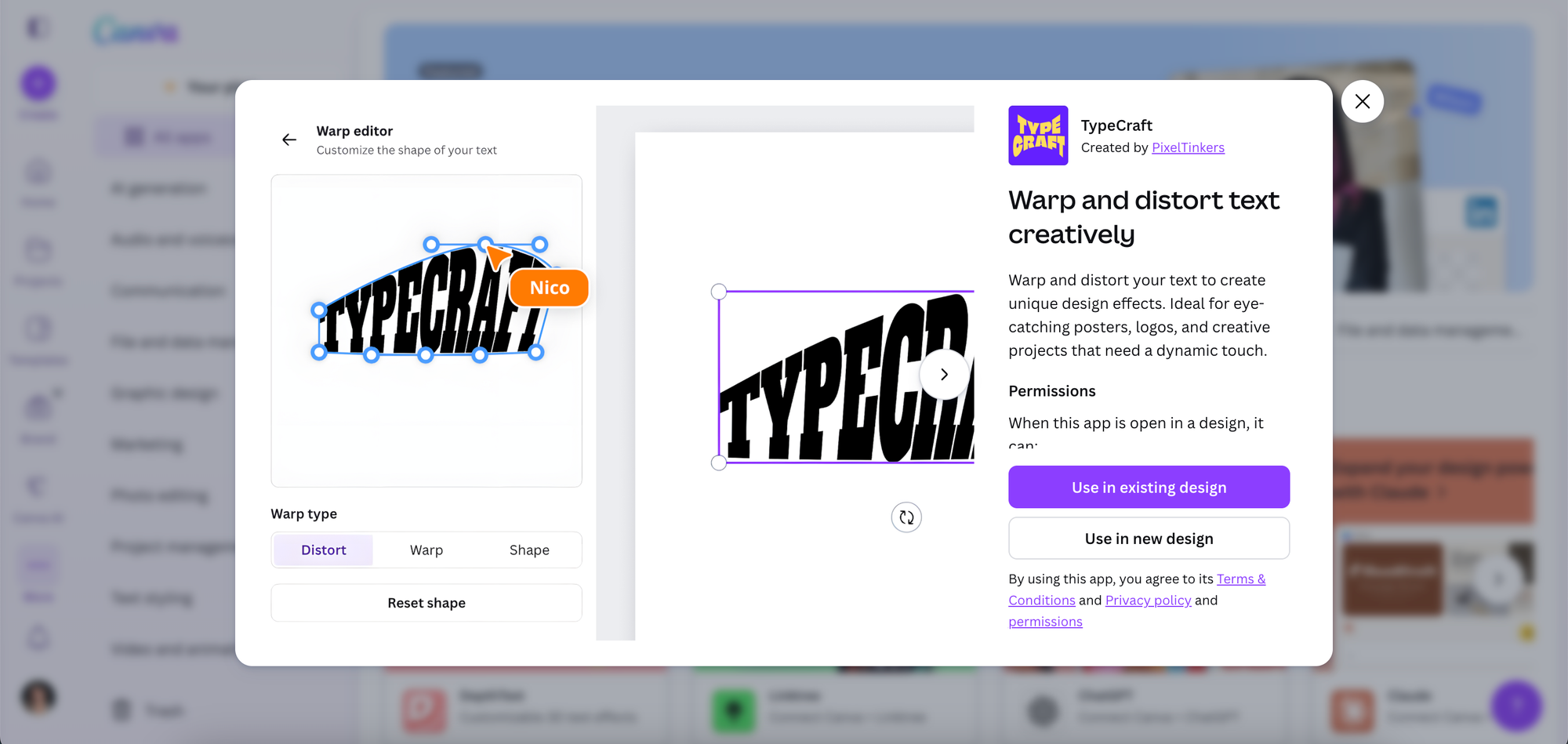
Plain text is forgettable. Typecraft makes sure yours isn't.
The app lets you warp and distort your text into shapes and effects that you simply can't pull off with Canva's standard text tools. The kind of typography you see on eye-catching posters, bold logos, and creative social content that makes you do a double-take: Typecraft is built for exactly that.
The controls are more intuitive than they look. You choose your text, apply a warp style, and adjust until it looks right. The results tend to feel polished rather than gimmicky, which is the line that separates a good text effect from one that distracts from your message.
What we like about it: The effects genuinely look professional. For business owners creating their own content, being able to produce typography that looks custom-designed is a real advantage, especially for anything you want to stand out in a crowded feed.
What we don't like about it: It's easy to get carried away. Text distortion works best when it's intentional and restrained, so it's worth treating Typecraft as a creative accent rather than a default style for every design you make.
Find it: Search "Typecraft" in the Canva Apps tab, or find it here
2. Font Studio
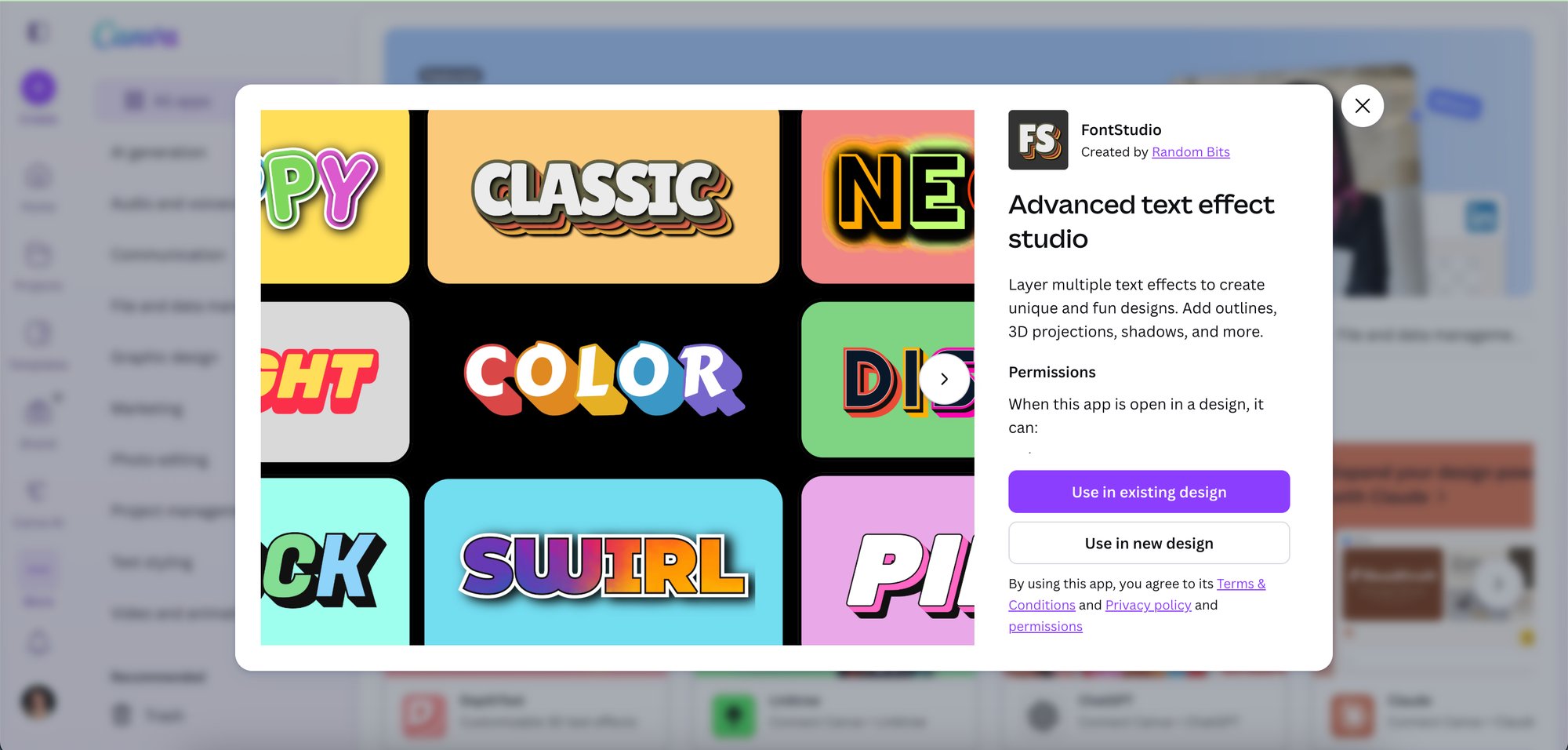
Font Studio is built around layering. Instead of applying a single text effect and calling it done, the app lets you stack multiple effects on top of each other to create something that feels genuinely bespoke.
Outlines, 3D projections, drop shadows, fills: each one is its own layer, and you can mix and match them in whatever combination works for your design. The results range from clean and minimal (a simple outline on bold text) to rich and dimensional (a stacked effect with depth and shadow). The amount of creative control it gives you is unusual for a free tool.
What we like about it: The layering approach is what sets it apart. Most text effect tools give you a preset and let you tweak the parameters slightly. Font Studio lets you actually build your effect from the ground up, which means the output can feel far more original.
What we don't like about it: Some of the more impressive effects sit behind a Canva Pro subscription, so if you're on the free plan, you may find a portion of the library unavailable. It's also worth keeping readability in mind, because layering effects is fun, but the text still needs to be legible at the end of it all.
Find it: Search "Font Studio" in the Canva Apps tab, or find it here
3. Text Warp
Text Warp does what the name suggests, and it does it well. The app gives you drag controls that let you bend, curve, and warp your text into custom shapes with a level of precision that makes the process feel surprisingly satisfying.
Where it earns its spot alongside the other tools on this list is in the customisation options. Beyond the warp itself, you can adjust shadows, swap fonts, and change colours all within the same interface. It's a self-contained text design tool that gets you from idea to finished effect without a lot of back and forth.
What we like about it: The drag controls make it genuinely accessible. You don't need to understand the mechanics of text distortion to get a great result. Just drag until it looks right, and the built-in shadow and colour customisation means you're not jumping between tools to finish the effect.
What we don't like about it: The core functionality overlaps with Typecraft, so if you've already got one of them in your workflow, the other may feel redundant. Try both and stick with whichever feels more intuitive to you.
Find it: Search "Text Warp" in the Canva Apps tab, or find it here
4. TextArt
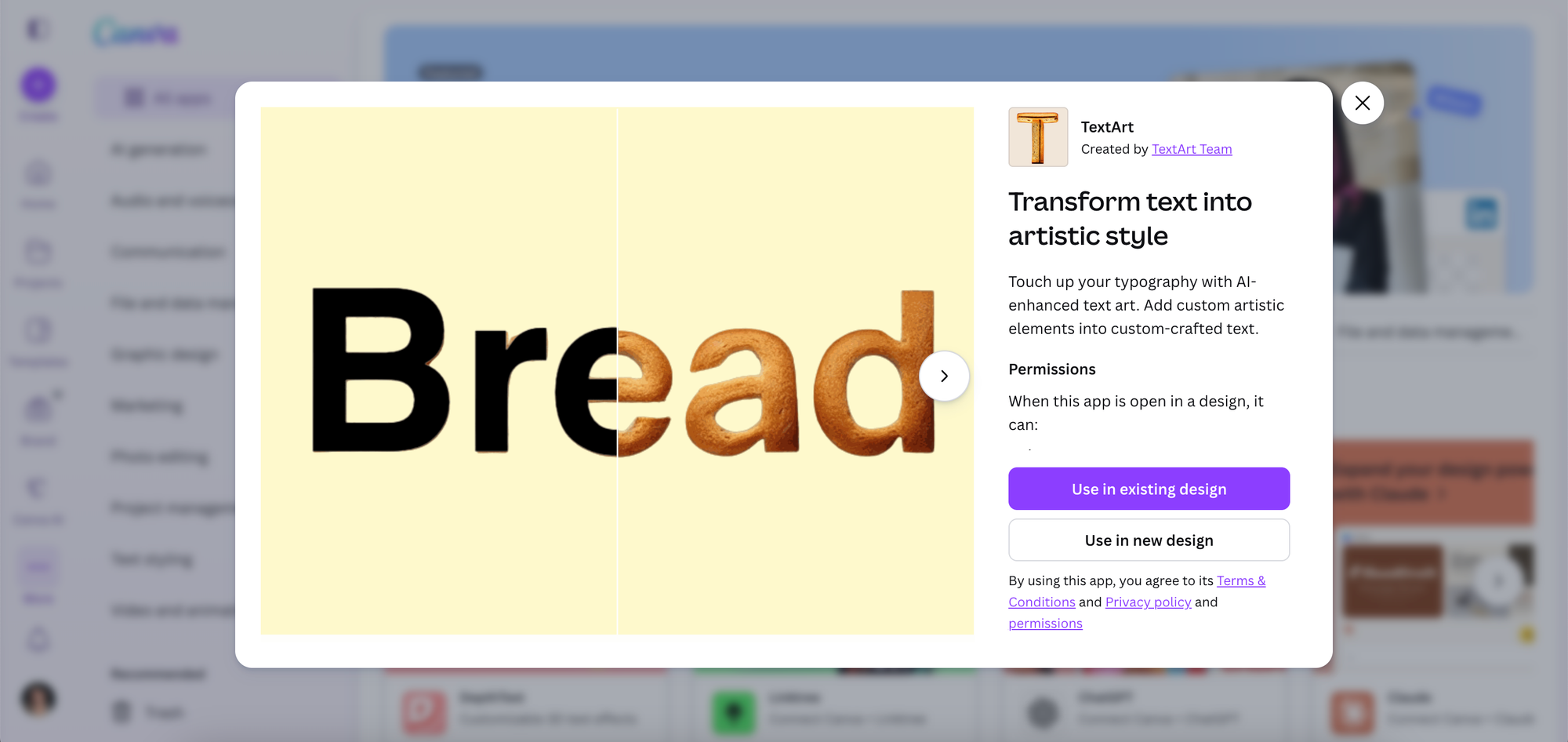
The first three apps on this list are about shaping and styling text. TextArt takes a different approach entirely. It uses AI to weave artistic, illustrative elements directly into your typography.
Think text where the letters themselves become part of an image. Where the words and the visual are one thing, not two separate layers sitting on top of each other. It adds a level of artistry to plain text that would typically require a skilled illustrator, and it does it through a few simple inputs rather than hours of manual work.
It's a tool that sits in a slightly different category from the others. Less about clean typographic effects and more about decorative, expressive text that makes a statement on its own.
What we like about it: The AI-generated results can be genuinely surprising in the best way. For covers, hero images, social posts, or anywhere you want your text to feel like art rather than a caption, TextArt opens up creative directions that would otherwise be out of reach for most business owners working without a designer.
What we don't like about it: Because the output is AI-generated, it's less predictable than the other tools on this list. You may need to generate a few variations before landing on something that works, and the results can occasionally miss the mark. It's a tool that rewards a bit of experimentation rather than expecting a perfect result on the first try.
Find it: Search "TextArt" in the Canva Apps tab, or find it here
A Note on Using These Together
These four apps aren't mutually exclusive. Font Studio's layering pairs naturally with a Typecraft warp applied first. TextArt works well as a hero text element surrounded by simpler typography designed using the other tools. The Canva App Marketplace is built for this kind of stacking, and experimenting with combinations is often where the most interesting results come from.
Start with whichever appeals most, spend twenty minutes exploring it, and go from there. Text effects are one of those things that look harder than they are once you've actually tried them.
Frequently Asked Questions
Are these Canva text apps really free?
Three of them (Typecraft, Text Warp, and TextArt) are completely free. Font Studio is free to use with a wide range of effects available at no cost, though some of the more advanced effects may require a Canva Pro subscription to unlock. None of them require a paid plan to get genuinely useful results.
Do I need Canva Pro to use these apps?
No. All four apps are available to free Canva users through the App Marketplace. Font Studio is the one exception where certain premium effects may require Canva Pro, but the free version still has plenty to work with.
What's the difference between Typecraft and Text Warp?
Both apps let you warp and distort text, but they approach it differently. Typecraft focuses on shape-based distortion with a more design-forward output. Text Warp uses intuitive drag controls and includes built-in shadow and colour customisation in the same interface. Both are free and take seconds to set up, so try them side by side and stick with whichever clicks.
Which of these apps is best for social media content?
It depends on the kind of content you're making. For bold, graphic social posts and carousel cover slides, Font Studio's layering effects tend to produce the most scroll-stopping results. For something more artistic and distinctive, TextArt is worth exploring. Typecraft and Text Warp are versatile enough to work across most social formats.
Will these text effects work on any font?
Generally yes, though some apps work better with bolder, heavier fonts where the effect has more visual weight to play with. Thin or highly decorative fonts can sometimes make effects harder to read, so it's worth testing your chosen font before committing to a final design.