

One of the most common things that makes DIY content look DIY is inconsistency. Different shades of the same colour across posts. Three different fonts used on three different graphics. A logo that sometimes sits in the corner and sometimes doesn't appear at all.
These things are easy to miss when you're producing content quickly, and they're also easy to fix. Canva's Brand Kit is built specifically to solve this problem. It stores your brand colours, fonts, and logos in one place, so every design you create pulls from the same source and stays consistent without you having to think about it.
Here's how to set yours up.
What Is a Brand Kit in Canva?
A Brand Kit is essentially a set of saved brand assets inside Canva. Once it's set up, your colours, fonts, and logos are accessible in a single click from within any design. You're not hunting through past projects to find the right hex code, and you're not guessing which font you used last time.
Canva offers Brand Kit access on both the free and Pro plans, though the feature set differs:
Free plan: You can save a basic set of brand colours and use them across designs. Font saving and multiple brand kits are not available.
Canva Pro: Full Brand Kit access, including saved fonts (heading, subheading, and body), multiple brand logos, multiple complete brand kits (useful if you manage more than one brand), and a brand voice guide.
How to Set Up Your Brand Kit
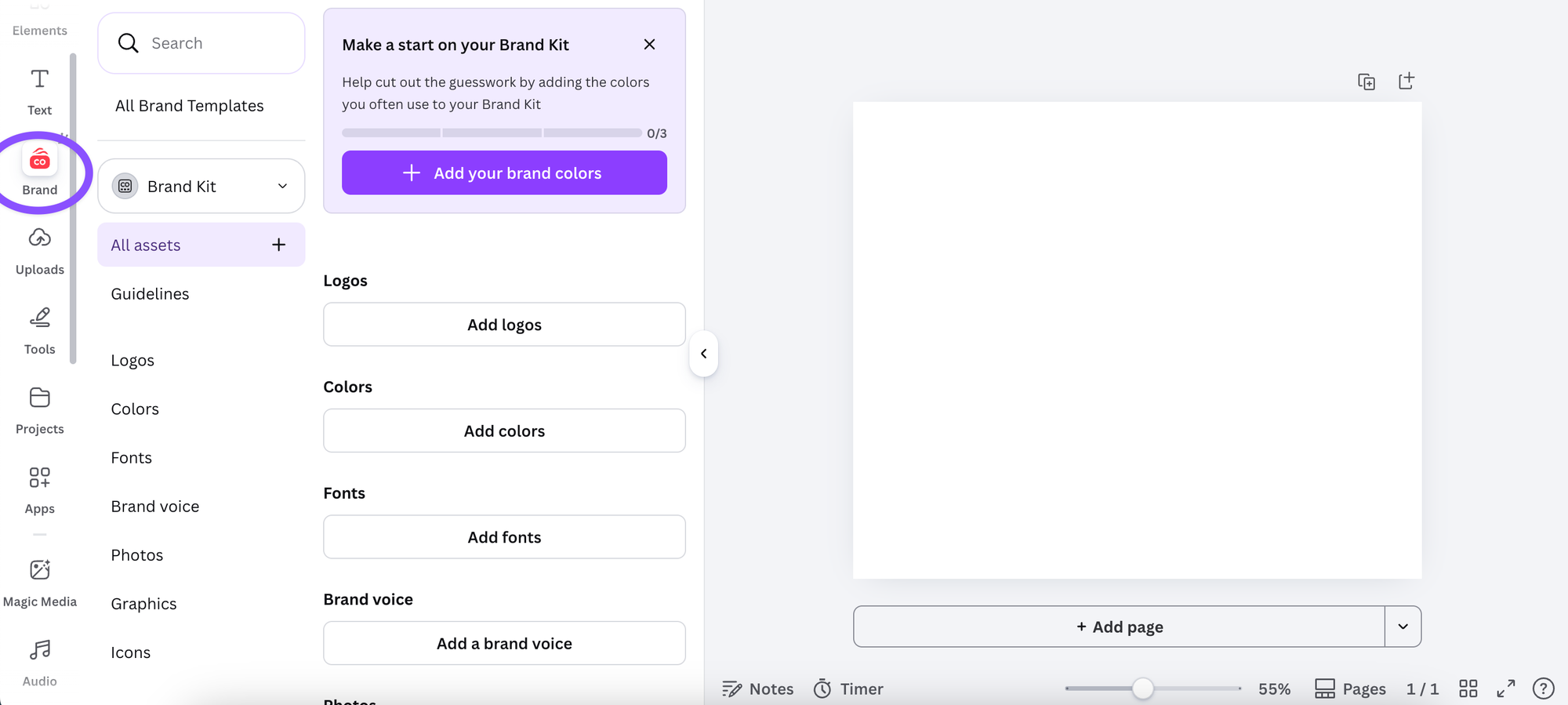
Step 1: Open Brand Kit from the Canva home screen
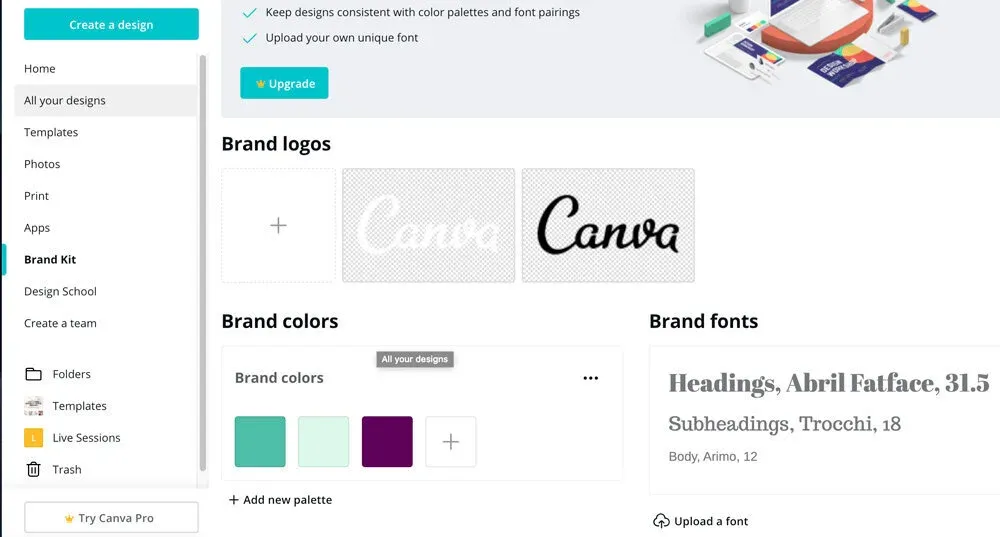
From the Canva home page, look for Brand Hub in the left sidebar. Click it, then select Brand Kit. This opens your brand settings.
If you're on a free plan, you'll see a more limited version of this page, but you can still save your brand colours.
Step 2: Upload your logo
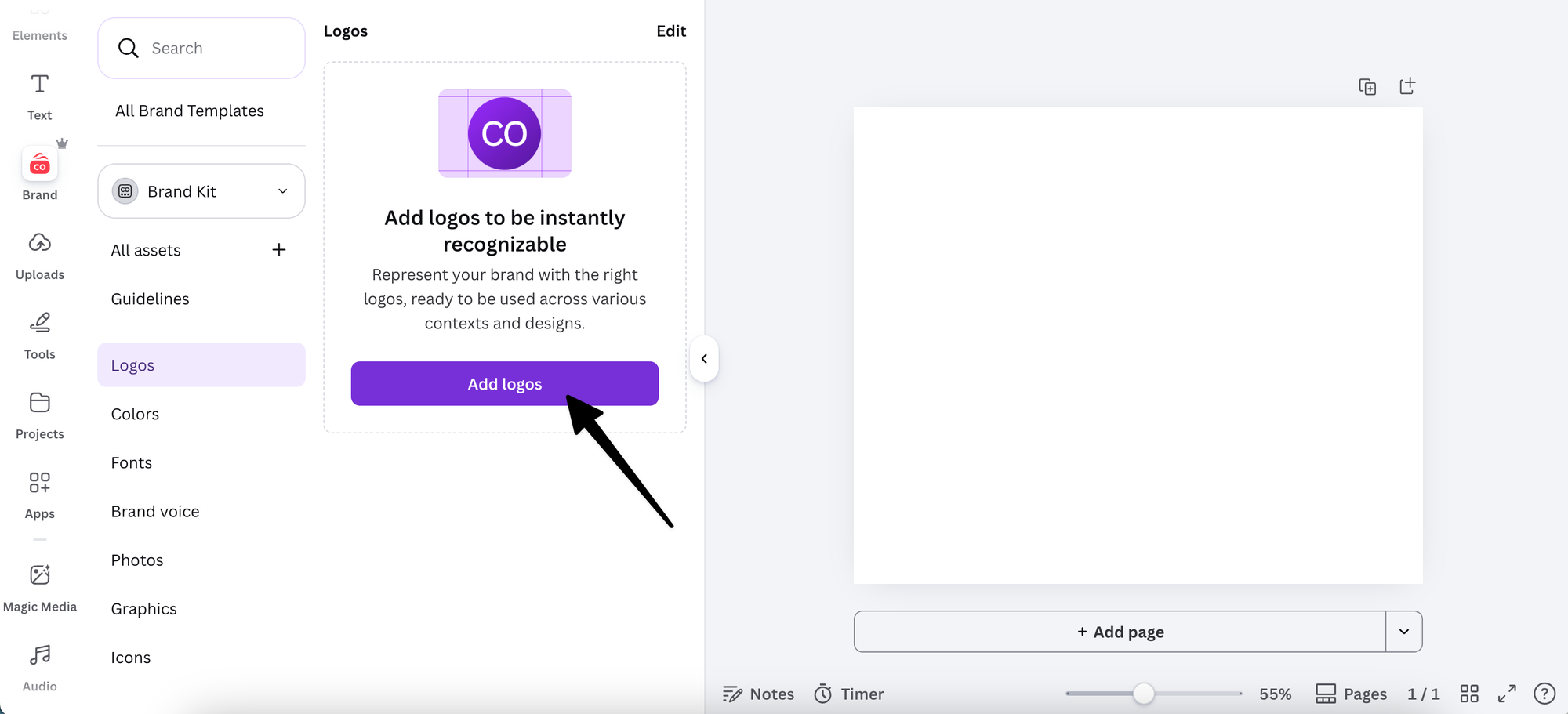
Click the Add logo button (or the upload area under Logos) and upload your logo file. PNG format with a transparent background works best here, since it can be placed cleanly over any background colour without a white box around it.
You can upload multiple logo variations: your primary logo, a horizontal version, an icon-only version, and a white or dark reversed version. Having all of them saved means you're never scrambling to find the right file when you need it.
Step 3: Add your brand colours
Under the Colours section, click the Add a colour button (the plus icon). You can enter your exact hex code to ensure your brand colour is accurate, not just close.
Add all the colours in your brand palette: your primary colour, secondary colours, accent colours, and any neutrals you use regularly (whites, greys, blacks). The more complete your colour palette, the less you'll need to reach for the colour picker.
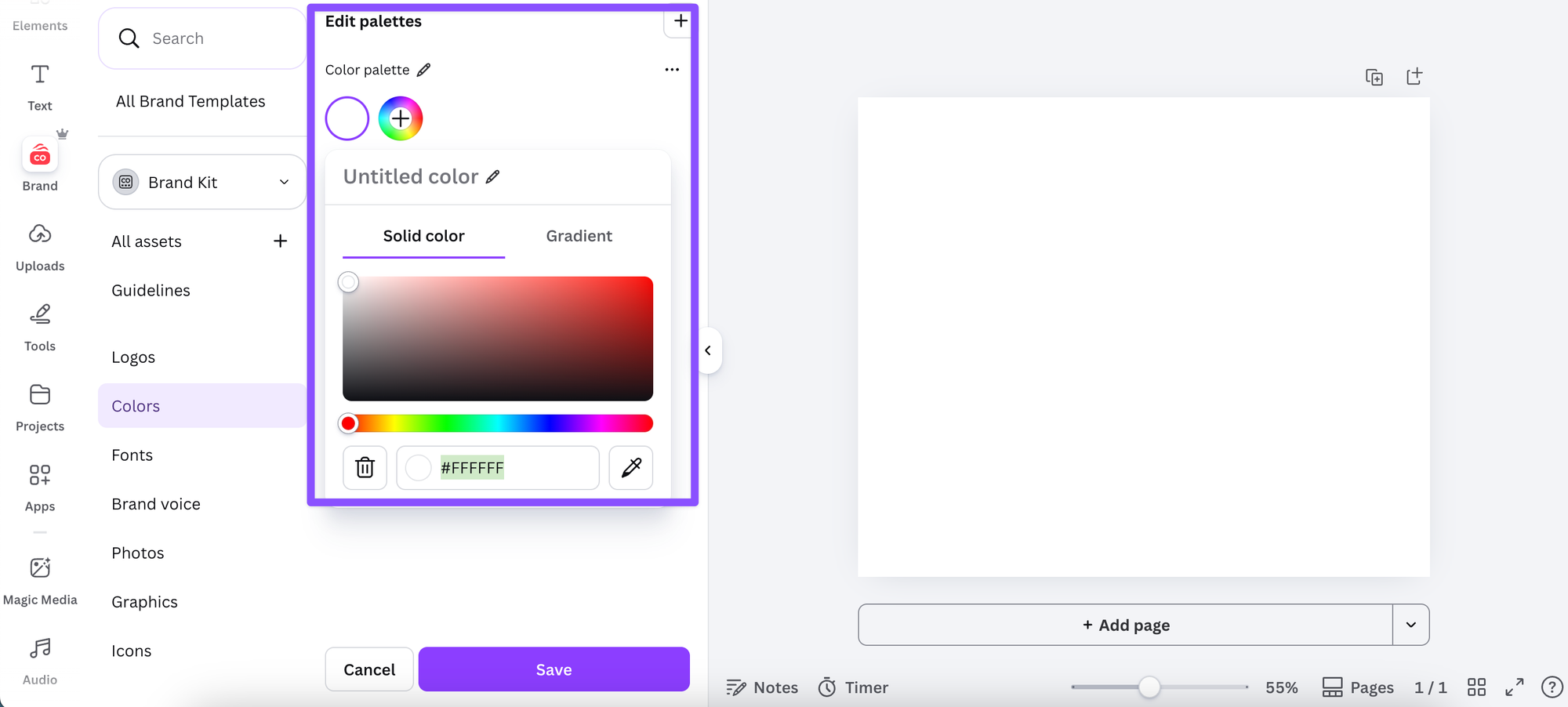
Finding your hex codes: If you're not sure of your exact brand hex codes, check your brand guidelines, your website's CSS, or look up your logo file in a tool like Adobe Color or Canva's own eyedropper.
Step 4: Set your brand fonts (Canva Pro)
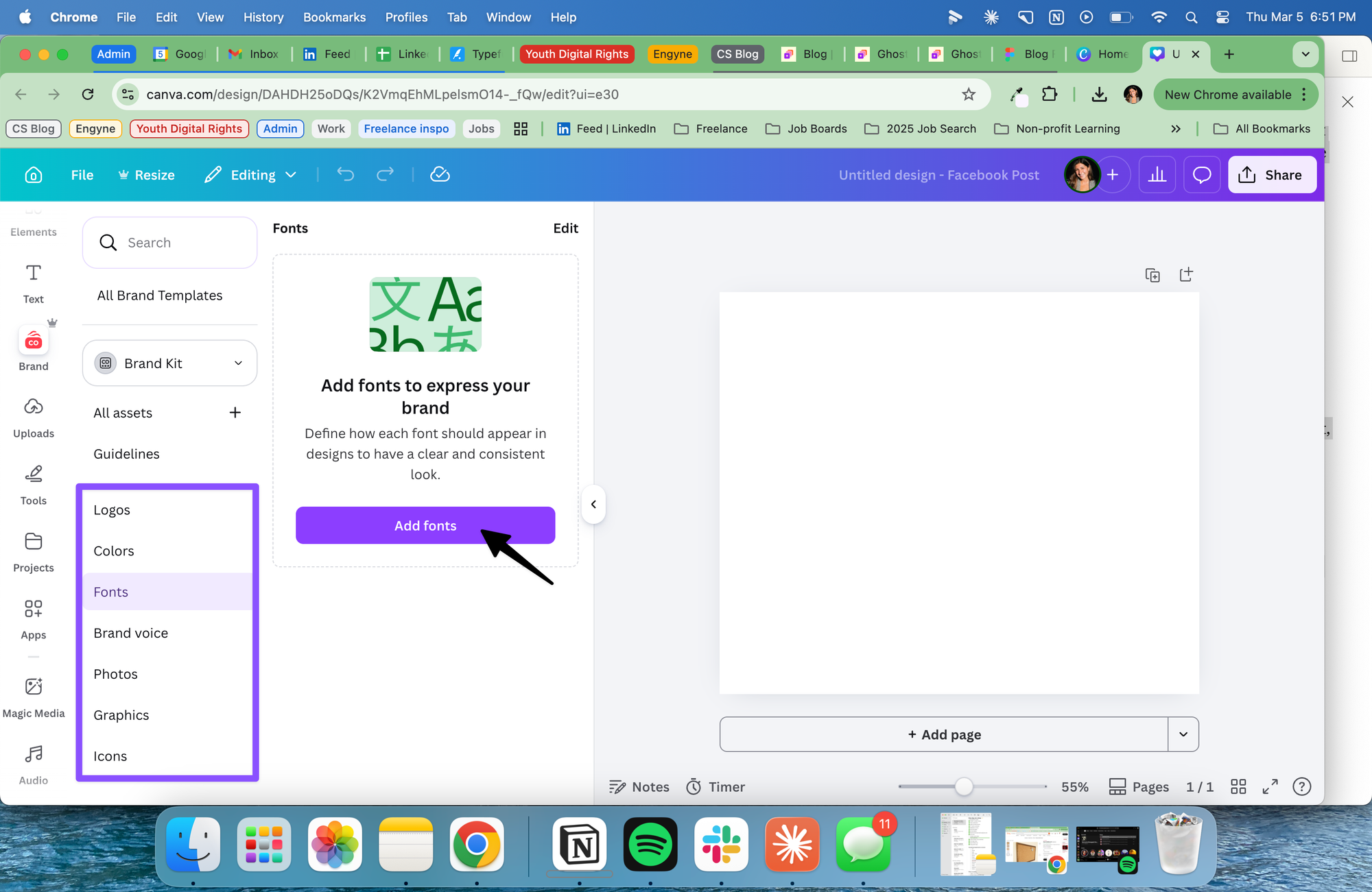
Under the Fonts section, you can set three font roles: Heading, Subheading, and Body. Click each one and choose from Canva's font library, or upload a custom font file if your brand uses something not available in Canva's library.
Getting this right matters. When these are set correctly, Canva will suggest your brand fonts automatically whenever you're working on text in a design.
Step 5: Add any brand graphics or images (Canva Pro)
Canva Pro also lets you save brand images and graphic elements to your kit, such as brand patterns, textures, or watermarks you use consistently. These appear in your Brand Kit panel for quick access during design.
Step 6: Name and save your Brand Kit
Give your Brand Kit a name (your business name works fine) and make sure everything is saved. From this point on, your brand assets will appear in the Brand Kit panel inside every Canva design you open.
Using Your Brand Kit in a Design
Once your Brand Kit is set up, accessing it inside a design is straightforward. Open any design, click the Brand section in the left sidebar panel, and your logos, colours, and fonts appear ready to use.
For colours, your brand palette now appears at the top of the colour picker whenever you're editing any element. For fonts, your brand fonts are highlighted at the top of the font selector. For logos, you can drag them directly from the Brand Kit panel onto your canvas.
Why This Matters More Than You Think
Beyond saving time (which it does), a Brand Kit creates a kind of creative discipline. When your colours and fonts are locked in, you make fewer arbitrary decisions in the moment that slowly erode your visual consistency over time.
For business owners using tools like Carousel Studio to generate carousel content inside Canva, having a Brand Kit set up first means your generated carousels pull in your brand colours and fonts automatically. Every piece of content you produce starts from the same foundation, which is what makes a body of content look cohesive rather than cobbled together.
Frequently Asked Questions
Is the Canva Brand Kit free?
Basic colour saving is available on the free Canva plan. Full Brand Kit functionality, including saved fonts, multiple logos, multiple brand kits, and brand graphics, requires Canva Pro.
How many brand kits can I have in Canva?
Canva Pro allows multiple Brand Kits within a single account, which is useful for agencies or anyone managing more than one business. Each kit stores its own set of colours, fonts, and logos independently.
Can I upload custom fonts to my Canva Brand Kit?
Yes, on Canva Pro you can upload custom font files (OTF or TTF format) and add them to your Brand Kit. Once uploaded, they appear in your font selector just like any of Canva's built-in fonts.
What file format should I use for my logo in Canva?
PNG with a transparent background is the best option for logos in Canva. It sits cleanly over any background colour without a white box. SVG files are also supported on Canva Pro and scale without losing quality. Avoid JPG for logos since it doesn't support transparency.
Can multiple team members access the same Brand Kit?
Yes. On Canva Pro team plans, Brand Kits are shared across all team members, so everyone is working from the same colours, fonts, and logos. This is one of the most practical features for small teams managing content across multiple people.
Do I need a Brand Kit if I'm just starting out?
Yes, and arguably it matters more at the start than at any other point. Establishing your visual consistency early makes your content look intentional from day one rather than something you're still figuring out. Even a simple Brand Kit with one or two colours, a single font pairing, and your logo is enough to create a coherent visual identity across everything you post.